Connecting to a Raspberry Pi via Bluetooth
Before You Start
Ensure that you have installed the Python Code on the target Raspberry Pi and the code is running.
How to Initiate a Connection
Ensure you are on the Controls Tab in the app. This displays the control surface.
the controls are live, but if you are not connected to the RAspberry Pi, nothing can be sent or received.
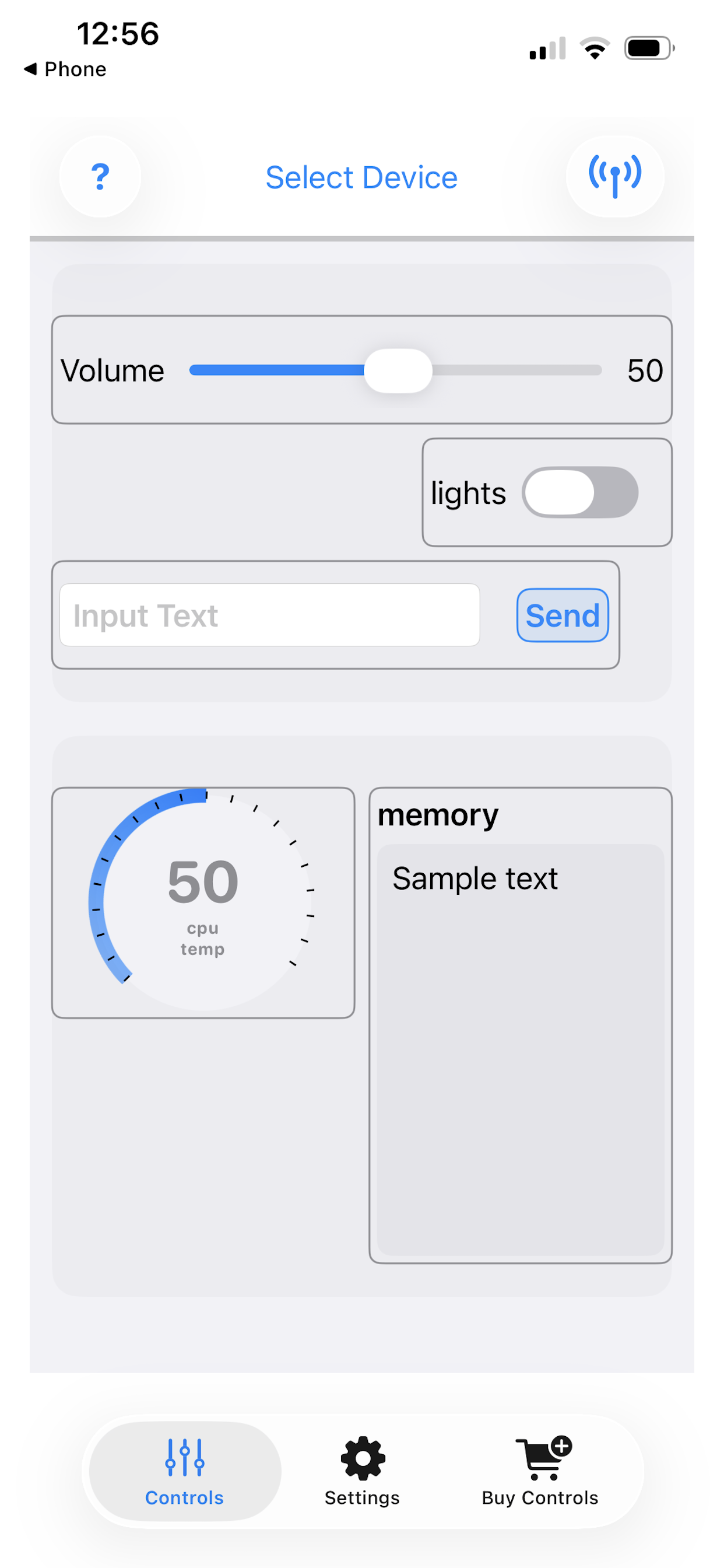
If you are not connected yet to a Raspberry Pi - the text Select Device is displayed at the top of the screen, and a blue antenna icon is shown to the right.
Tap Select Device or the blue antenna icon to display the connection screen
The Connection Screen
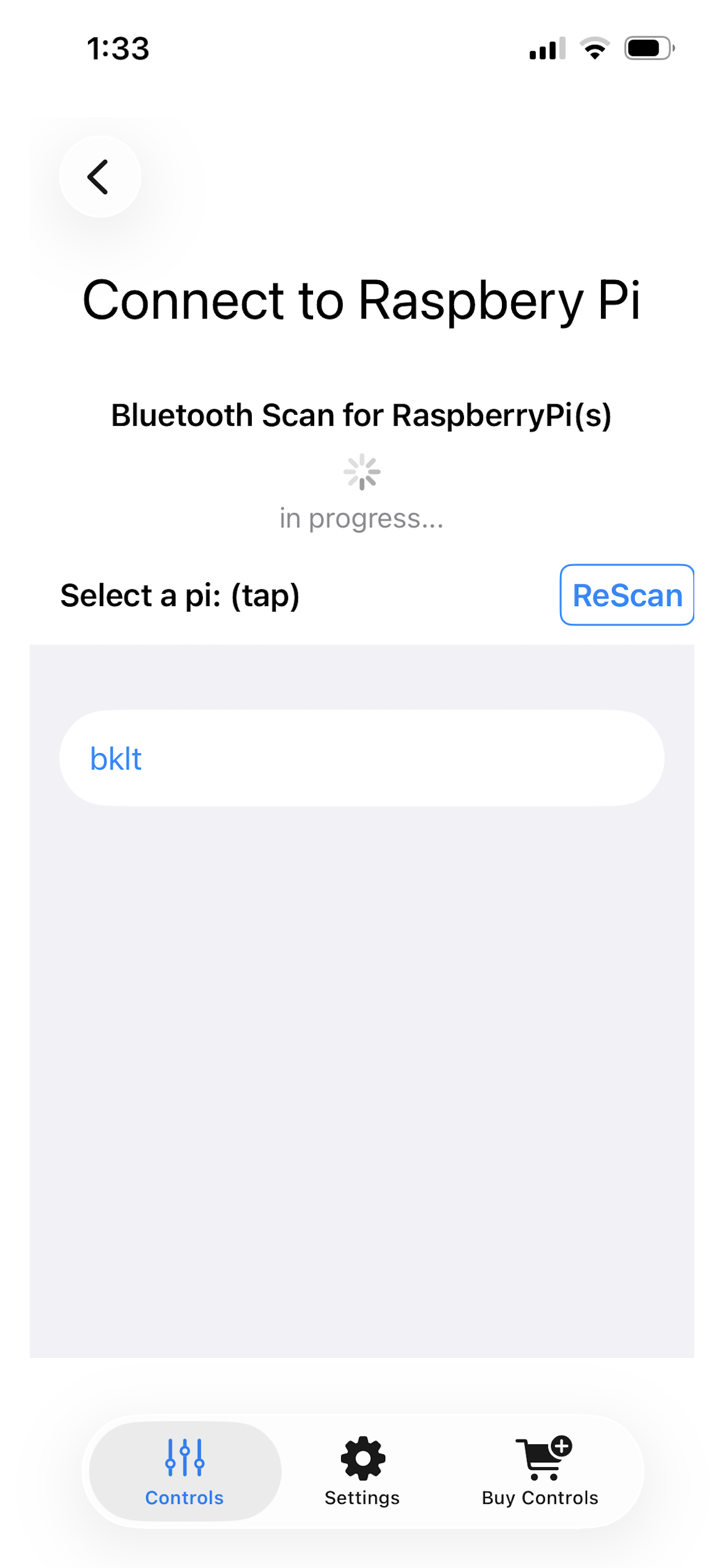
This screen has started the Bluetooth Low Energy (BLE) scanning process. Any Raspberry Pi with the Python Code installed and running will be displayed in the list (under Select a pi), provided it is in bluetooth range.
The list displays the hostname of the Raspberry Pi discovered via the BLE Scanning process.
If all your Raspberry Pis have the same hostname, the hostname are displayed with and added numeral, indicating the sequence in which they are discovered. There is no way to tell which physical RPi you are connecting to from the app. People who use the same hostname on multiple RPi have modified the python code to light an LED on the RPi indicated that it is connected.
Tap the desired hostname to establish the bluetooth connection.
A screen is displayed showing the connection progress. Once the connection is established, you are returned to the Controls Screen.
When connected - the Controls Screen displayed the hostname of the connected RPi at the top of the screen.
At this point, the actuating the controls will send their value over to the RAspberry Pi over bluetooth: You can control the RPi. Similarly, the RPi has the ability to send information back to the RPi.
If you are using the Getting Started and the original Python code, the RPi will have sent the CPU temperature upon connecting.
Disconnecting
While connected, the Controls Screen displayed the hostname of the connected RPi at the top of the screen. It also displays an Antenna icon with a red X over it.
Tap the Red X antenna icon to disconnect. You will know you are disconnected when the display at the top of the Controls Screen indicates: Select Device.
Disconnection is normally used when you want to connect to another Raspberry Pi. Note that the app is not configured to connect to more than one RPi at the time.